
Every time you connect to WiFi, your personal data—passwords, emails, financial transactions—travels through the air. Without proper protection, anyone within range could intercept that information. That’s where WiFi Protected Access (WPA) comes in.
WPA is the security framework that encrypts data between your devices and your router, preventing unauthorized access and eavesdropping. It evolved through three versions—WPA (2003), WPA2 (2004), and WPA3 (2018)—each addressing the flaws of its predecessor.
In this guide, you’ll learn what is WPA WiFi, how each version works, which protocol you should use, and how to secure your home network step by step.
- Why WiFi Security Matters: The Role of WPA
- The Evolution of WiFi Security Protocols
- How does WPA Work: Technical Explanation
- WPA Vulnerabilities and KRACK
- Which WiFi Security Protocol Should You Use?
- Practical Guide: How to Check and Update Your WiFi Security Settings on ONU Router
Why WiFi Security Matters: The Role of WPA
What is WPA for WiFi
Before diving deeper, it helps to understand that WPA does two separate jobs:
Authentication — proving that you’re allowed to join the network. This is what the password (PSK) does.
Encryption — scrambling your data so that even if someone captures it, they can’t read it.
These two functions work together. You authenticate to prove you belong, then encryption protects everything you send. A network can have strong encryption (AES) but weak authentication (a simple password), or strong authentication (Enterprise/RADIUS) with no encryption (rare). WPA handles both, which is why it’s the complete security solution for WiFi.
The Problem Without Encryption
When your WiFi network lacks encryption, your data is broadcast in plain text. Anyone within physical range—a neighbor, someone in a nearby car, or a hacker in a coffee shop—can use freely available tools to capture and read your internet traffic. This includes login credentials, emails, and sensitive personal information.
The original WiFi security protocol, WEP (Wired Equivalent Privacy), was introduced in 1997 and was broken within a few years of widespread deployment. With modern hardware, a WEP network can be compromised in minutes. WEP was officially deprecated in 2004, yet some old access points still use it—treat any WEP network as completely open.
What WPA Protects
WPA secures everything transmitted over your WiFi connection:
Websites and app data—even if a site uses HTTPS, the initial connection can reveal metadata
Passwords and authentication tokens
Device-to-device communication on the same network
Smart home device traffic
How does WPA works at a Basic Level
WPA secures your connection through two layers: authentication (proving you’re allowed to connect) and encryption (scrambling data so only authorized devices can read it). When you enter your WiFi password, your device and router perform a cryptographic handshake that establishes unique session keys for that connection. These keys encrypt every packet sent between your device and the router, making intercepted data unreadable.
The Evolution of WiFi Security Protocols
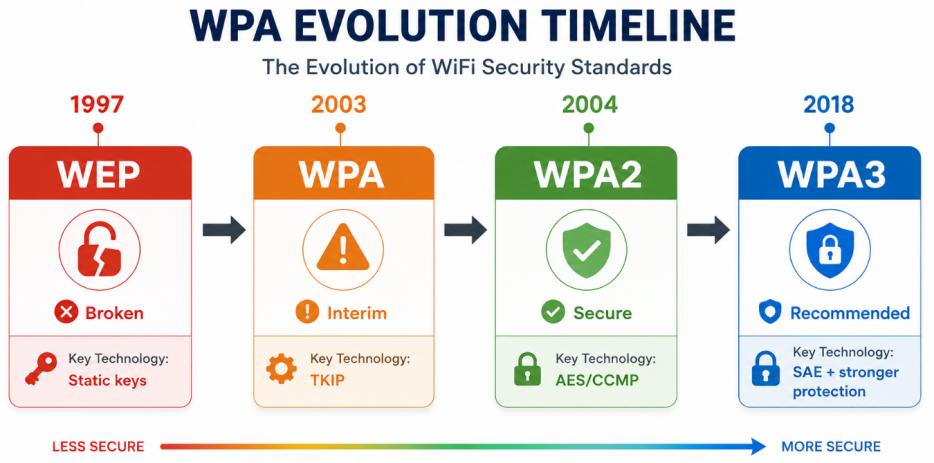
WEP (1997)–The Flawed Beginning
WEP used static encryption keys that never changed. Attackers could capture enough network traffic to crack the key with minimal effort—a process that now takes minutes.
Status: Deprecated in 2004, completely insecure.
WPA (2003)–The Interim Solution
WPA was rushed in as a stopgap when WEP’s flaws became undeniable. It introduced TKIP (Temporal Key Integrity Protocol), which dynamically changed encryption keys for each data packet and added message integrity checks. However, TKIP was a patch over WEP’s broken foundation and still contained exploitable vulnerabilities.
Status: Obsolete—avoid if possible.
WPA2 (2004)–The Current Standard
WPA2 brought AES (Advanced Encryption Standard) with 128-bit keys via the CCMP protocol—the same encryption used by governments and the military. It became the industry standard and remains secure today when properly configured.
Status: Widely used, secure with a strong password.
WPA3 (2018)–The Next Generation
WPA3 addresses WPA2’s key limitations: offline password guessing attacks, lack of protection on open networks, and weak IoT device security. It introduces:
- SAE (Simultaneous Authentication of Equals) —resists offline dictionary attacks
- Forward secrecy —past sessions remain encrypted even if the password is later compromised
- OWE (Opportunistic Wireless Encryption) —encrypts traffic on open public networks without requiring a password
- Status: The recommended standard—mandatory for all Wi-Fi-certified devices since 2020.
How does WPA Work: Technical Explanation
WPA-Personal vs. WPA-Enterprise
WPA-Personal (PSK/Pre-Shared Key)—used by most home networks. All devices connect using the same shared password. Easy to set up and widely supported, but if someone knows the password, they can potentially decrypt other users’ traffic on that network.
WPA-Enterprise (802.1X/RADIUS)—uses individual credentials for each user and a central authentication server. Each device gets unique encryption keys, providing true user isolation and the ability to revoke access instantly. Common in businesses and institutions, but requires a RADIUS server and technical expertise to configure.
The Four-Way Handshake
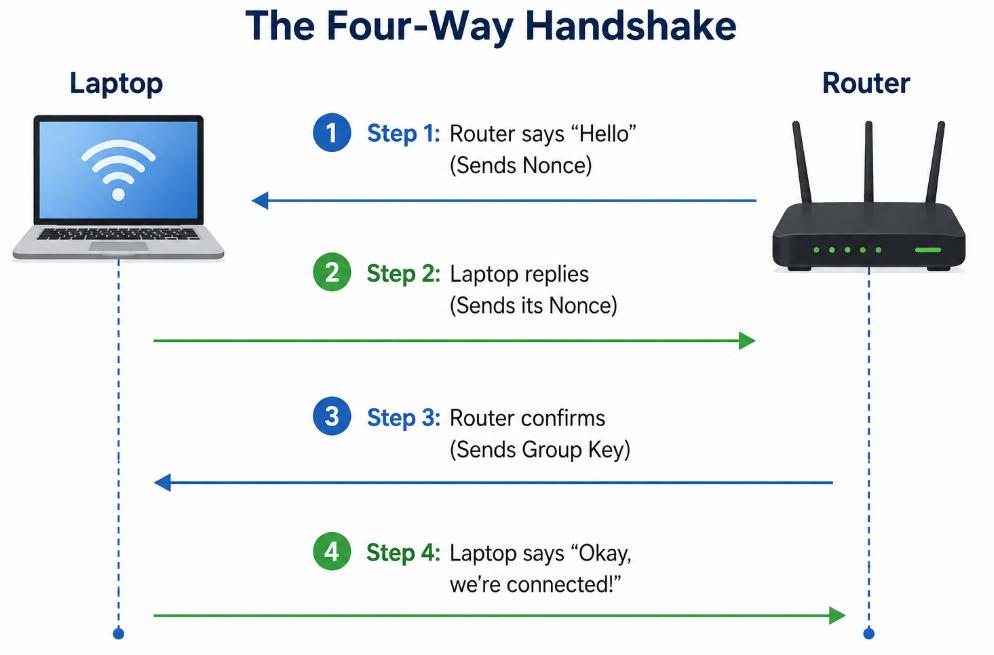
The four-way handshake is the cryptographic process that establishes a secure connection without ever revealing the password :
- The access point (AP) sends a nonce (a random number) to the client device
- The client generates its own nonce and sends it back with a cryptographic signature (MIC)
- The AP confirms the client’s credentials and sends the group key
- The client sends a final confirmation—the secure session is now established
- This handshake ensures both parties prove they know the encryption key without transmitting it. The PTK (Pairwise Transient Key) generated during this process encrypts all subsequent traffic.
WPA Vulnerabilities and KRACK
In 2017, security researcher Mathy Vanhoef discovered a severe flaw in WPA2’s four-way handshake called KRACK (Key Reinstallation Attack).
How KRACK works: During the four-way handshake’s third step, an attacker can force the client to reinstall an already-used encryption key, resetting packet counters and allowing the attacker to decrypt, replay, or forge data.
Crucially: The attacker does NOT need to know your WiFi password. They only need to be within physical range of the network. Changing your password does nothing to prevent KRACK.
The good news: KRACK has been patched in modern devices through software updates. However, it exposed a fundamental limitation of WPA2-Personal—shared-key networks don’t provide true per-user session isolation.
WPA3 closes these vulnerabilities entirely. Its SAE handshake prevents key reinstallation and resists offline brute-force attacks.
Which WiFi Security Protocol Should You Use?
Recommendation
Use WPA2 at minimum; upgrade to WPA3 if supported.
| Protocol | Status | Recommendation |
| WEP | Broken | ⚠️ Treat as open—replace immediately |
| WPA (TKIP) | Vulnerable | ❌ Avoid—upgrade to WPA2 or WPA3 |
| WPA2-Personal (AES) | Secure with strong password | ✅ Acceptable—standard for home networks |
| WPA3-Personal | Most secure | ✅ Recommended—use if router and devices support |
| WPA2/WPA3 Mixed Mode | Good | ✅ Transitional mode—lets WPA3 devices use WPA3 while older devices fall back to WPA2 |
Check Compatibility
Most routers manufactured after 2020 support WPA3
All modern devices (laptops, smartphones, tablets) support WPA2
Some older IoT devices (smart plugs, cameras, printers) may only support WPA2—check before switching to WPA3-only
Avoid These
WEP —crackable in minutes with free tools
Original WPA —TKIP is a known vulnerability
Open networks —zero encryption, treat as public
WPA2 with TKIP —some routers offer TKIP as a fallback; disable it and use AES-only
Weak Passwords Are a Major Risk
Even with WPA2, a weak password is vulnerable to offline dictionary attacks. An attacker can capture the four-way handshake, then attempt thousands of password guesses per second offline. A common or short password will be cracked. Use a long, random passphrase with a mix of uppercase, lowercase, numbers, and symbols.
Practical Guide: How to Check and Update Your WiFi Security Settings on ONU Router
Step 1: Check What Protocol Your Current Network Uses
iPhone/iPad: Settings → WiFi → tap the “i” next to your connected network → check the “Security” field (shows WPA2, WPA3, or “None”)
macOS: Hold Option and click the WiFi icon in the menu bar → check the security type
Android: WiFi settings → tap connected network → security protocol varies by manufacturer
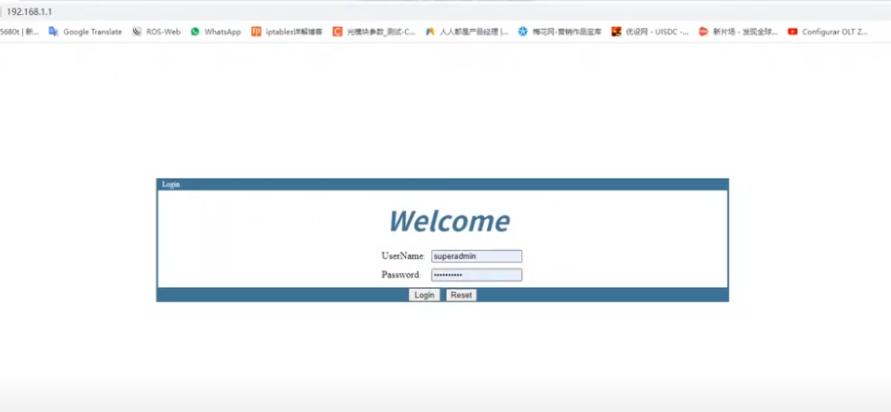
Step 2: Access Your Router’s Admin Panel
Find your ONU router’s IP address—commonly 192.168.1.1 or 192.168.0.1 (printed on the router label)
Open a browser and enter the IP address
Log in with admin credentials (default is often “admin”/”admin” or “admin”/”password”—change this immediately if you haven’t)
Step 3: Navigate to Wireless Security Settings
Look for sections labeled “Wireless,” “WiFi,” “Security,” or “Wireless Settings”. The exact menu varies by router brand.
Step 4: Select the Correct Security Protocol
Security Mode: WPA2-PSK (AES) or WPA3-Personal
Encryption: AES (not TKIP)
If WPA3 is available: select WPA2/WPA3 mixed mode to support both old and new devices
Step 5: Set a Strong Password
Minimum 12–16 characters—longer is better
Mix of uppercase, lowercase, numbers, and special characters
Avoid: common words, names, dates, phone numbers, or simple patterns
Step 6: Additional Router Security Measures (Recommended)
Disable WPS—this pairing feature has known vulnerabilities
Disable Remote Management—prevents external access to your router
Enable Guest Network—for visitors and IoT devices, with client isolation enabled
Regularly check connected devices—look for unfamiliar MAC addresses and change your password if you see any
Conclusion
WiFi security matters—your personal data travels through the air every time you connect. WPA is the framework that protects it.
- WPA2 remains secure when paired with a strong password and up-to-date firmware
- WPA3 is the future standard, offering stronger protection against password attacks and better security on open networks
- WEP and original WPA are obsolete—treat them as open networks
Your Next Steps
- Check your current security protocol—iPhone, Android, or router admin panel
- Log into your ONU router and verify your security settings
- Upgrade to WPA2 or WPA3 if you’re still using WEP or WPA
- Set a strong, unique WiFi password—long and complex
- Disable WPS and Remote Management for added security
Your network is only as secure as its weakest configuration. Take five minutes today to check your settings—it’s one of the easiest and most effective security upgrades you can make.


