
You’ve just signed up for fiber optic internet. The technician installed a small white or black box on your wall, handed you a router, and left. Now you’re staring at a blinking red light, and your phone says “Connected, no internet.”
Don’t panic.
You are likely dealing with the ONT (Optical Network Terminal). This is the unsung hero of fiber internet—the box that converts light signals into digital data. But here’s the first thing you need to know: not all ONTs are the same.
Some are pure ONTs (no Wi-Fi). Others are combo devices with built-in routers and Wi-Fi. Connecting a second router to the wrong type will cause more problems than it solves.

This complete guide covers both scenarios.
Determining if your ONT needs a Router
| Device | What It Does | What It Looks Like |
| Pure ONT (No routing, no Wi-Fi) | Converts fiber to Ethernet. No routing, no Wi-Fi. | Small white/gray box. No antennas. No Wi-Fi sticker. Single LAN port. |
| Pure ONT with Routing (Routing, No Wi-Fi) | Converts fiber AND routes traffic. Assigns IP addresses via DHCP. No Wi-Fi. | Same as pure ONT, but your computer gets an IP address when connected directly. |
| ONT/Router Combo (Routing + Wi-Fi) | Converts fiber, routes traffic, AND broadcasts Wi-Fi. | Has antennas, WPS button, and a sticker with Wi-Fi name and password. |
| Separate Router | Distributes internet via Wi-Fi and wired ports. | Plastic box with antennas. Multiple blinking lights. |
Here’s the confusion most people run into:
- If your ONT is a combo device (already has Wi-Fi) and you plug in a second router without changing settings → Double NAT, slow speeds, gaming issues.
- If your ONT is a pure device with routing (no Wi-Fi but assigns IP addresses) and you add a router → Double NAT again. You may not need a router at all.
- If your ONT is a pure device without routing without routing (no Wi-Fi, no DHCP), You must connect a separate router.
So the first and most important question is: What type of ONT do you have?
You don’t need to guess. Run this simple test right now.
- Turn off your separate router completely (unplug it).
- Connect a computer directly to the ONT’s LAN port via Ethernet.
- Check if your computer gets an IP address automatically.
| Result | What It Means | What To Do |
| Computer gets an IP address (e.g., 192.168.x.x) | Your ONT has routing capabilities (with or without Wi-Fi) | You may not need a separate router. If you add one, use Bridge Mode or AP Mode. |
| Computer does NOT get an IP address | Your ONT is a pure bridge device (no routing) | You must connect a separate router. Skip to “Pure ONT: Requiring a Router.” |
| You see the ONT’s Wi-Fi name on your phone | Your ONT has built-in Wi-Fi (combo device) | Skip to “ONT with built-in Wi-Fi: When and How to Add a Router?” |
ONT with built-in Wi-Fi/ Pure ONT with Routing: When and How to add Router?
If your ONT already functions as a router — whether it broadcasts Wi-Fi or simply assigns IP addresses via DHCP. You have three options.
Option A: Use the ONT as your only Router
Connect your devices directly to the ONT’s Wi-Fi (use the password on the sticker)
Use the ONT’s LAN ports for wired devices (gaming consoles, PCs, TVs)
If your ONT has no Wi-Fi but does have routing (e.g., BAUDCOM single-port ONU), connect a Wi-Fi access point or switch to the LAN port for wired devices
Return the separate router to the store, or keep it as a spare.
Modern combo ONTs from ISPs support Wi-Fi 5 (AC) or Wi-Fi 6 (AX), dual-band, and often mesh networking. For 90% of homes, this is good enough.
Option B: Requiring a router for advanced features—Put the ONT in Bridge Mode
“Bridge Mode” converts your 2-in-1 ONT device into a standalone modem—disabling its built-in routing and Wi-Fi capabilities—thereby allowing your own router to take full control of network management.
How to enable bridge mode:
Log into the ONT’s admin panel (IP address is usually on a sticker: 192.168.1.1 or 192.168.0.1)
Enter the administrator username and password (this information is typically printed on a label on the device itself; if you cannot find it there, you can also search online for the default settings provided by your broadband service provider (ISP)).
Look for an option labeled “Bridge Mode,” “IP Passthrough,” “DMZ,” or “Transparent Bridge.”
Enable it and select your router’s MAC address if asked.
Save and reboot the ONT
Next, please refer to the steps under “Scenario 2” below to connect your router.
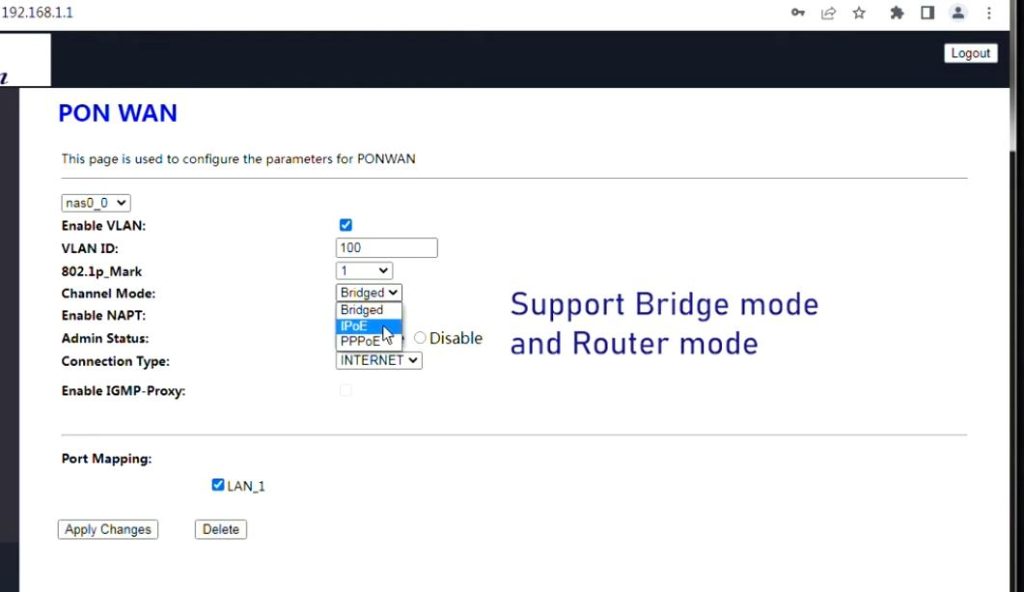
If bridge mode isn’t available: Put your router in Access Point (AP) Mode
If your ISP’s ONT doesn’t allow bridge mode, you can turn your separate router into an access point instead. This extends Wi-Fi without causing Double NAT.
How to enable AP mode:
Connect your router to the ONT using a LAN-to-LAN cable (not LAN-to-WAN)
Log in to your router’s admin panel.
Look for Access Point Mode, AP Mode, or Bridge Mode (on the router side)
Enable it
Disable DHCP on your router (the ONT will handle IP addresses)
Change your router’s IP address to be inside the ONT’s range.
Pure ONT: Requiring a Router
If your ONT has no antennas, no Wi-Fi sticker, and only a single LAN port, then you must connect a separate router. The pure ONT cannot broadcast Wi-Fi on its own.
This section covers everything you need.
How to Connect ONT to Router (Physical Setup)
If you want to know how to connect an ONT to a router with a pure ONT, follow these exact steps:
Get the right cable: Use a Cat5e or Cat6 Ethernet cable. Do not use a telephone cable (they look similar but have fewer wires).
Find the ONT’s LAN port: Look for a port labeled LAN, Ethernet, GE, or Internet. Do not use the ports labeled “Voice” (for telephone/voice services) or “Optical” (for fiber optic connections).
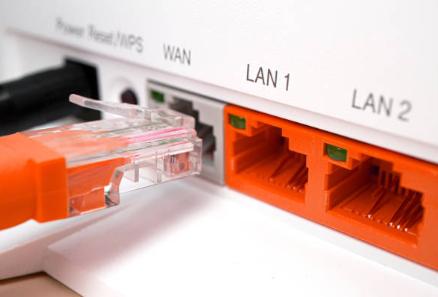
Find the router’s WAN port: Look for a port labeled WAN, Internet, or sometimes colored yellow or blue. It is often separated from the other LAN ports.
Connect them: Plug one end into the ONT’s LAN port, and the other end into the router’s WAN port.
Important: The process of how to connect router to ONT is identical. It’s the same physical connection: ONT LAN → Router WAN.
Configuring Your Router After Connecting to the ONT
After the physical connection is completed, the router must be configured properly.
Step 1: Restart Both Devices
Restarting network equipment allows the ONT and router to establish a fresh connection.
Follow this sequence:
- Turn off the router.
- Disconnect power from the ONT.
- Wait one to two minutes.
- Power on the ONT first.
- Wait until the ONT status lights stabilize.
- Turn on the router.
Some ISPs temporarily associate the ONT with a specific router. Restarting both devices often resolves recognition and authentication issues.
Step 2: Configure Router Internet Settings
Physical connectivity alone does not guarantee internet access.
Different ISPs use different WAN configurations, including:
Dynamic IP (DHCP)
PPPoE
Static IP
VLAN tagging
Log in to your router’s management interface and verify the settings required by your ISP.
Entering an incorrect PPPoE username, password, or VLAN ID can prevent the router from accessing the internet even though the ONT connection appears normal.
Always consult your ISP’s installation documentation when configuring a new router.
Step 3: Check Router WAN Status
The WAN status page is one of the most useful troubleshooting tools.
Access the router’s management page and check:
WAN IP address
Internet connection status
DNS information
Gateway information
If the WAN IP address shows 0.0.0.0 or remains blank, the router is not successfully receiving internet service from the ONT.
Checking WAN status helps determine whether the issue lies with the ONT, router settings, or ISP service.
Troubleshooting: Why Router Cannot Connect to Internet
You’ve plugged in the cable, but the router’s internet light is still red, orange, or blinking. Here is the detailed explanation of why router cannot connect to internet — broken down by root cause.
Cause #1: The ONT is “stuck” on an old device (Most common)
What happened: Fiber ONTs have a memory. They remember the MAC address (unique hardware ID) of the last device connected to them. If you unplugged your old router and plugged in a new one without restarting the ONT, the ONT ignores the new router.
The fix (Power Cycle):
Unplug the ONT from power (not just the router).
Wait 60 full seconds (this drains residual power).
Plug the ONT back in.
Wait 2–3 minutes for all lights to turn green.
Then, power on your router.
Cause #2: Wrong WAN protocol on your router
What happened: Your internet provider uses a specific way to hand out IP addresses. Most home routers default to Dynamic IP (DHCP). But many fiber providers (especially in Europe and Asia) use PPPoE (Point-to-Point Protocol over Ethernet), which requires a username and password.
The fix:
Log in to your router’s admin panel (usually 192.168.1.1 or 192.168.0.1).
Look for WAN Settings, Internet Settings, or Connection Type.
Select:
Dynamic IP – If your ISP says “no login required.”
PPPoE – If your ISP gave you a username/password
If using PPPoE, enter the credentials exactly as provided.
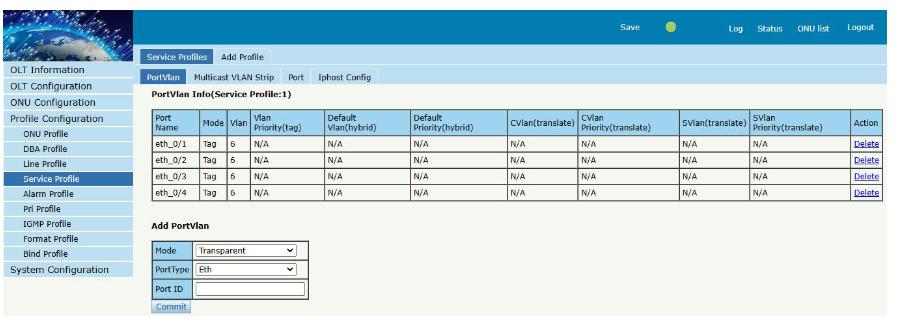
Cause #3: ISP uses VLAN tagging
What happened: Some fiber providers (like BT, Sky, Orange, Telmex) use VLANs (Virtual Local Area Networks) to separate internet, TV, and voice traffic. Your router must tag its internet traffic with a specific VLAN ID (e.g., 10, 35, or 101). Without it, your router’s signals are ignored.
The fix:
In your router’s WAN settings, look for VLAN, 802.1Q, or IPTV/VLAN.
Enable VLAN tagging.
Enter the VLAN ID your ISP requires (call them or check online).
Save and reboot.
Cause #4: Bad Ethernet cable or wrong port
What happened: Not all cables are equal. A damaged cable, a cable longer than 100 meters, or accidentally using a “crossover” cable (rare now) can cause no signal.
The fix:
Try a different known-working Ethernet cable.
Ensure you are not using the ONT’s “Voice” port (that’s for landline phones only).
Ensure you are not using a router LAN port instead of the WAN port.
Conclusion
Learning how to connect ONT to router is an essential part of setting up a fiber internet connection. In many modern installations, the ONT already includes built-in Wi-Fi and routing functions, eliminating the need for a separate router. However, users who require better wireless coverage or advanced networking features may still choose to install a dedicated router.
Need a High-Performance ONT?
BAUDCOM provides reliable GPON, XG-PON, and XGS-PON ONTs with advanced Wi-Fi and routing capabilities for modern fiber networks. Contact us today to find the right FTTH solution for your home, business, or ISP deployment.


